
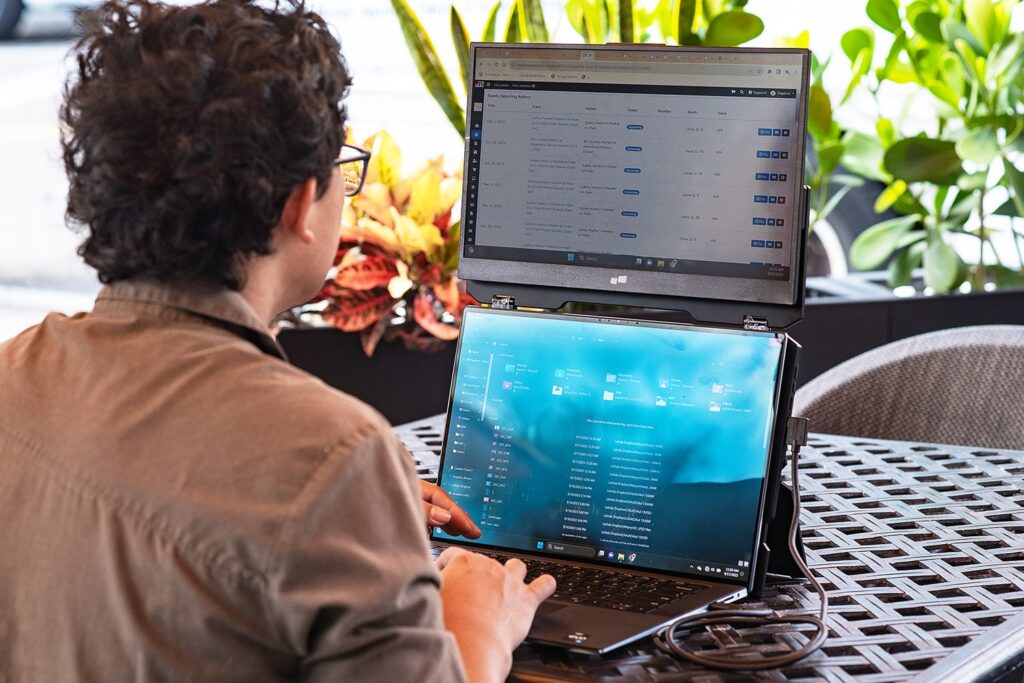

Professional coders must pay attention to this post. All the information here will show you how you can make the best use of an extra screen. The extra space on the screens can give you more area to view, debug, and manage your crucial tools. You can keep everything side by side. This is a great way to boost your productivity. So, get into the quick learning on making software development more productive.
But Why Developers Need an Extra Screen
Consider working on a single screen and waiting for your code to run. It clearly slows down your speed. Also, the constant switching of tabs is a natural source of breaking your concentration. This continuous back-and-forth leads you to lose the context. It is especially the case when you are debugging complex issues. There is a chance that you miss the major errors or overlook small details when everything is not visible at once.

The solution to this problem is adding an extra screen, like the Duex Float extra screen for a laptop. It will transform the way you achieve results.
Check out some benefits of using a Dual-Screen Setup:
- It will offer you better focus and clear workflow separation.
- This will give you faster and more efficient debugging cycles.
- You can monitor multiple processes simultaneously.
- There will be better mental mapping and task organization.
Try Using an Extra Screen for Debugging
You can try an extra screen for different tasks you want. One common use is for debugging. Here are some ways that will help you to do it efficiently.
- Split Debugging Workflow: You can split your screen for a better debugging workflow. Your main screen can keep the code editor, and the other screen can manage the debug console.
- Real-Time Log Monitoring: Users can watch the logs when their code executes using terminal outputs or log viewers. It helps to identify the errors quickly.
- Debugging Distributed Systems: You can dedicate every screen to different services. And, you can monitor API calls and responses simultaneously.
Try Using an Extra Screen for Testing
Another good way to use your extra screen is for testing. It is one of the crucial parts in software development. The following are some ways you can do it with an extra display.
- Frontend Testing: You can open your editor on one screen and your live browser preview on the other. A great way is to open multiple browser windows to check the responsiveness.
- Automated Testing: You can also try the automated testing. Watch test runs when they are happening on one screen. And review the logs and reports on the second.
- Cross-Browser Testing: Users can also run multiple browsers side-by-side. It will help you compare the UI differences without any delays.
- QA & Manual Testing Workflow: It is possible by testing one screen and interacting with your application on another. This is useful for better validation.
Try Using an Extra Screen for Multiple IDEs
One more thing that is helpful for developers is to use your extra screen for multiple IDEs. You can do it to boost your productivity. Here are some ways that will help you to do it.
- When You Need Multiple IDEs: This is crucial when you want to manage frontend and backend together. Also, you can use it for handling multi-language projects.
- Practical Setup: Try using your first screen for the primary IDE and the second one for the secondary IDE. The primary can be backend, and the secondary can be frontend.
- Popular IDE Combinations: You can code with IntelliJ and use Android Studio with a backend IDE. Or, you can use a web IDE with database tools.
Conclusion
Finally, the expert software developers get the answer. You can see how you can make incredible use of extra screen displays. These are the main core of boosting your productivity. The use of an added screen is clearly a way to improve your workflow. It will help you with coding, debugging, and collaborating better. Get your extra screen now!